How DNS Resolution Works
I am a developer from India.
What Is DNS and Why Does It Exist
Suppose you want to call a friend, but instead of a name, you only know their 10-digit phone number. Now imagine the internet works the same way: every website lives on a server with a numeric IP address (like 142.250.185.206).
But humans aren’t good at remembering numbers—we prefer names like google.com.
That’s where the Domain Name System (DNS) comes in. DNS acts as the Internet’s phonebook: it translates human-readable domain names into machine-readable IP addresses. Without DNS, browsing the web would require memorizing or manually tracking thousands of IP addresses.
Now, we will see how this conversion google.com to an IP address happens in the browser. To understand this dig is a very useful tool.
What is dig command, and what is the use of it?
dig (Domain Information Groper) is a command-line tool used to query DNS servers and inspect how name resolution works. Network engineers and developers use dig to -
Find and fix DNS issues
Verify DNS records (A, AAAA, MX, NS, etc.)
Understand delegation chains
Observe the full resolution path
The browser hides everything that it does behind the scenes to resolve and find the IP, but dig lets you observe each step of DNS resolution manually.
Architecture of DNS
DNS is not a single server or database. It’s a distributed, hierarchical system designed for scalability and flexibility. The hierarchy has three layers:
Root Name Servers (
.)Top-Level Domain (TLD) Servers (e.g.,
.com,.org,.in)Authoritative Name Servers (e.g., those for
google.com)
Each layer delegates responsibility downward. This design prevents any single entity from controlling the full namespace.
So basically, Decentralization, Delegation, and Loose coupling happen here.
We can know more about this layer by layer using dig tool.
Step 1: Understanding dig . NS and root name servers
Run:
dig . NS
This asks: “Who are the name servers for the root zone?”
Output Screenshot -
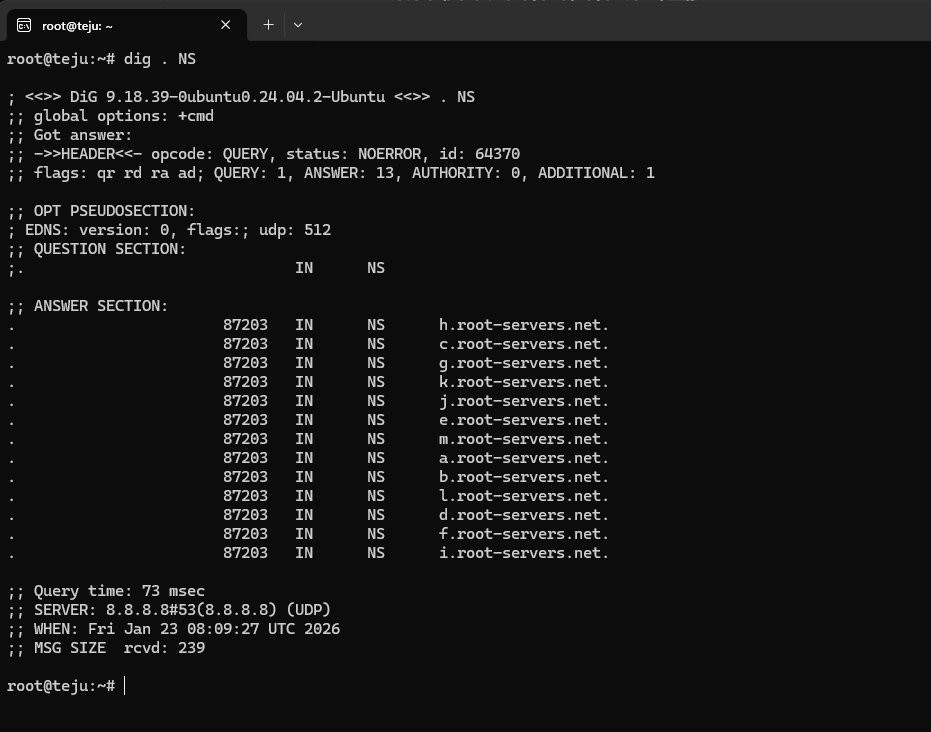
There are 13 logical root servers (a.root-servers.net , m.root-servers.net etc.), operated by various organizations worldwide. These servers don’t know your domain - but they know who to ask next based on the TLD.
Step 2: Understanding dig com NS and TLD name servers
Now, let’s find out who manages the .com TLD (Top Level Domain):
dig com NS
Output Screenshot:
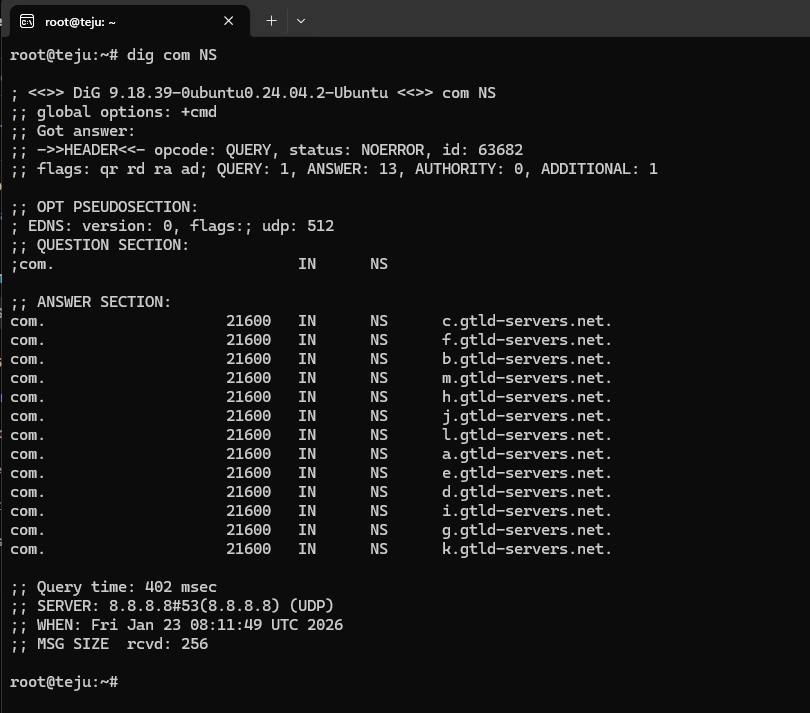
These are the Generic Top-Level Domain (gTLD) servers for .com. Like the root servers, they don’t know the IP for google.com—but they do know which name servers are authoritative for google.com.
This is the essence of delegation: each layer points to the next more specific layer.
Step 3: Understanding dig google.com NS and authoritative name servers
To resolve google.com, we need its authoritative name servers:
dig google.com NS
Output:
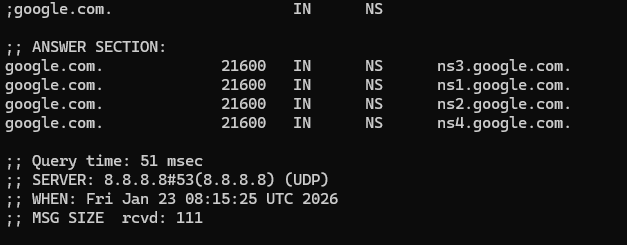
These servers (ns1.google.com, etc.) are authoritative for the google.com zone. They hold the definitive DNS records—including the A record that maps google.com to its IP address.
Why this matters: Only authoritative servers can provide final answers. All other servers (root, TLD, recursive resolvers) either delegate or cache responses.
Step 4: Understanding dig google.com and the full DNS resolution flow
Now, let’s see the complete lookup:
dig google.com
Output highlights:
;; ANSWER SECTION:
google.com.        300    IN    A    142.250.185.206
This gives us the final IP address. But behind the scenes, a recursive resolver (like your ISP’s DNS or 8.8.8.8) performed the full chain:
Asked a root server: “Where’s
.com?” → Got TLD servers.Asked a
.comTLD server: “Where’sgoogle.com?” → Gotns1.google.com, etc.Asked an authoritative server (
ns1.google.com): “What’s the IP forgoogle.com?” → Got142.250.185.206.
Your browser never does this itself—it relies on a recursive resolver to handle the multi-step process and return a simple answer.
Connecting to Real-World Browsing
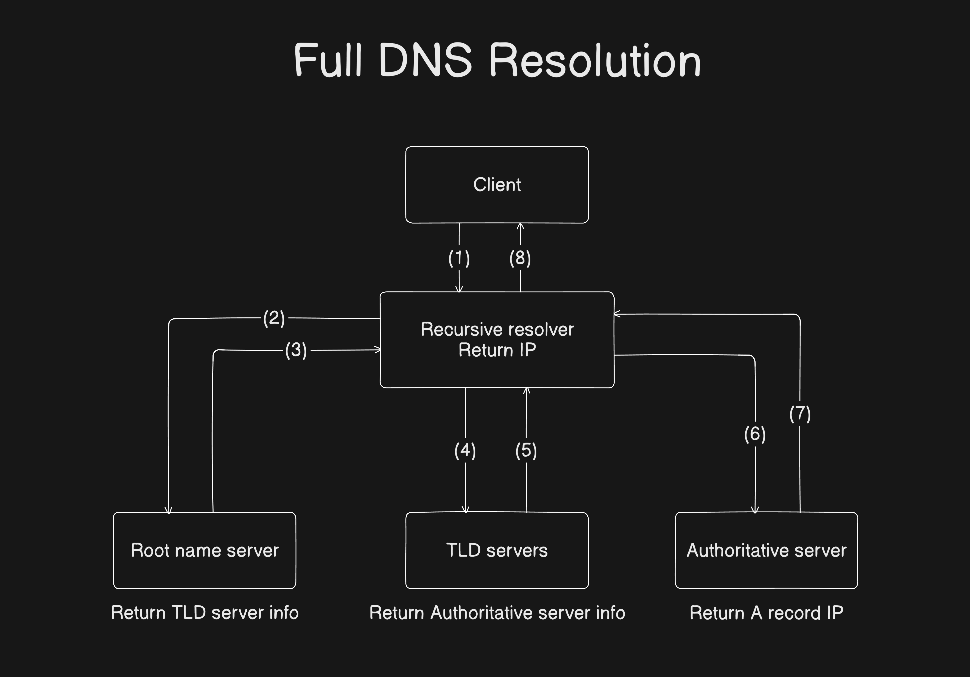
When you type https://google.com into your browser:
Your OS checks local caches (e.g.,
/etc/hosts, DNS cache).If not found, it sends a query to your configured recursive resolver (e.g.,
8.8.8.8or your router).The resolver performs the iterative lookup (root → TLD → authoritative).
It caches the result (for the TTL duration, e.g., 300 seconds) and returns the IP to your browser.
Your browser connects directly to that IP over HTTPS.
All of this typically happens in tens of milliseconds.
Visualizing the Flow
DNS Hierarchy
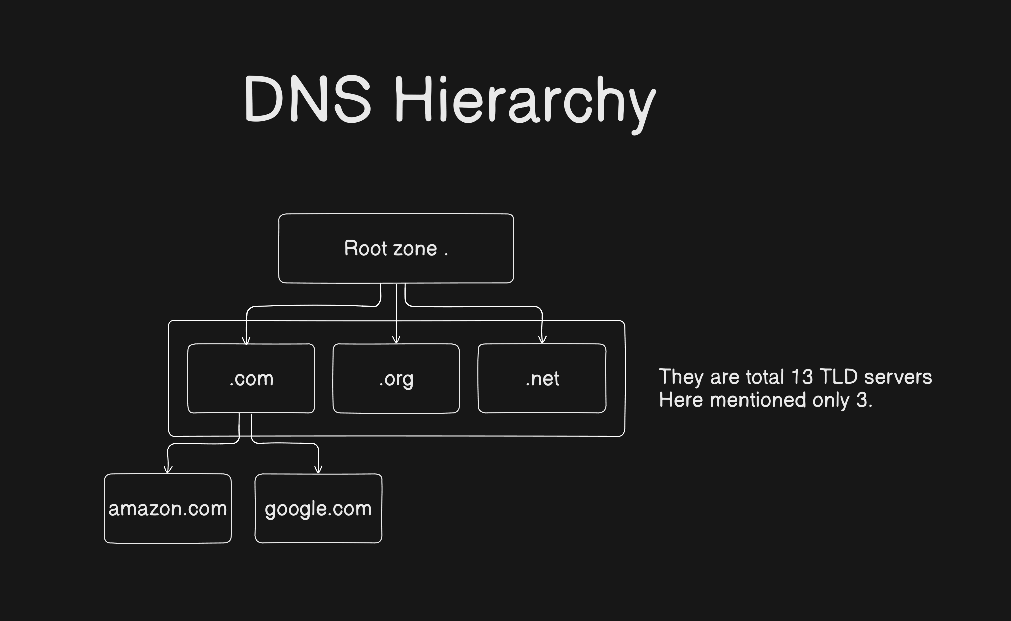
Step-by-Step Resolution for google.com
Client → Recursive Resolver: “What’s google.com?”
Resolver → Root Server: “Who handles .com?” → Returns
.comNS listResolver →
.comTLD Server: “Who handles google.com?” → Returnsns1.google.com, etc.Resolver →
ns1.google.com: “What’s the A record for google.com?” → Returns142.250.185.206Resolver → Client: “Here’s the IP!”
Mapping dig Commands to Stages
| Command | Purpose | DNS Stage |
dig . NS | Discover root name servers | Root |
dig com NS | Discover the TLD name servers for .com | TLD |
dig google.com NS | Find authoritative servers for the domain | Authoritative |
dig google.com | Get final IP (simulates full resolution) | End-to-end lookup |
Why This Design Matters
Scalability: No single server holds all DNS data.
Resilience: Redundant servers at every layer prevent global outages.
Delegation: Organizations control their own zones without central coordination.
Caching: Recursive resolvers reduce load on authoritative servers and speed up responses.