Linux File System Hunting
I am a developer from India.
Introduction: Why Linux Feels Different
As a web developer, I’m used to working with high-level abstractions. I write Python code, and Django handles the database. I write React components, and the browser handles the DOM. But recently, I started exploring the Linux operating system itself, and I hit a wall of confusion.
I kept hearing a phrase: "In Linux, everything is a file."
At first, this sounded like nonsense. How can a running process be a file? How can my network connection be a file? In Windows or macOS, we use specific tools like Task Manager or Network Settings to see these things. They feel like separate, hidden systems.
But in Linux, the designers chose a different path. They decided that if you can read data from it or write data to it, it should be represented as a file. This means:
Your hardware (like your WiFi card) is a file.
Your running programs are files.
Your system settings are text files.
This isn’t just a technical quirk; it’s a superpower. It means I don’t need special software to debug my server. I can use simple commands to look "under the hood" at exactly how my computer works. To test this, I went on a "Linux Hunt" across my file system. Here are five things I discovered that changed how I view my operating system.
Finding 1: Linux Identity
1. The Discovery (What I Found)
I started by looking at a file called /etc/passwd. I expected to see passwords, but instead, I found a list of every user on my system.
When I ran cat /etc/passwd, I saw lines like this: myusername:x:1000:1000:My Name,,,:/home/myusername:/bin/bash
I also looked at /etc/shadow, which is where the actual password hashes are stored. Unlike /etc/passwd, this file is locked down—only the root user can read it.
2. What This File Does (The Function)
/etc/passwd: This is the public directory of users. It tells the system:Who the user is (Username).
Where their home folder is (
/home/myusername).What shell they use when they log in (
/bin/bash).
/etc/shadow: This is the secure vault. It stores the encrypted (hashed) passwords and rules like "when does the password expire?"
3. Why It Exists (The Problem It Solves)
In the early days of computing, systems needed a simple, fast way to identify users without using a heavy database. A plain text file is incredibly efficient.
They split it into two files for security:
Many programs need to know who exists on the system (e.g., to show a list of users for a file share). These programs can read
/etc/passwdsafely because it doesn't contain secrets.Only the login system needs to check passwords. By keeping passwords in
/etc/shadowand making it unreadable to normal users, Linux prevents hackers from stealing password hashes even if they gain limited access to the system.
4. The Insight (Why It Matters to a Developer)
As a web developer, I usually think of "users" as rows in a SQL database (like in Django’s auth_user table). But Linux has its own user system that operates at a deeper level.
Here is why this matters for my work:
Deployment Security: When I deploy my Django app to a Linux server, I shouldn't run it as
root. I need to create a specific user (likewww-dataordjango-user). Looking at/etc/passwdhelps me verify that this user exists and, crucially, that their shell is set to/usr/sbin/nologin. This ensures that even if someone hacks my web app, they can’t log into the server terminal.Permissions: Every file on my server is owned by a user ID (UID) from this file. If my Django app can’t write to a log file, it’s often because the UID in
/etc/passwddoesn’t match the owner of the folder. Understanding this file helps me debug permission errors quickly.
Verify on your Linux system
See your user:
grep $USER /etc/passwd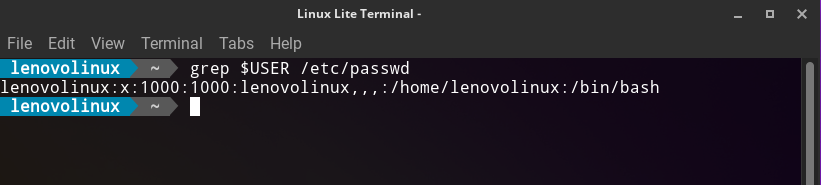
(This filters the long list to show only YOUR line.)
See the security difference:
ls -l /etc/passwd
ls -l /etc/shadow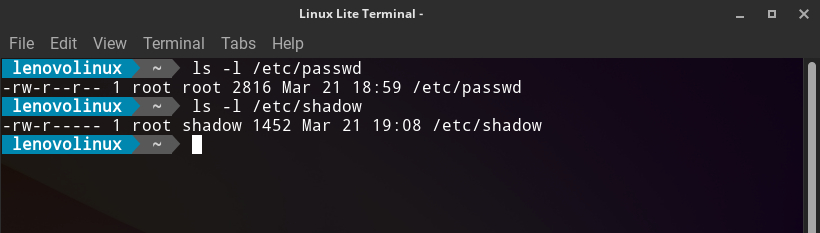
(Notice how
passwdsays-rw-r--r--(everyone can read) butshadowsays-rw-r-----(only root/shadow group can read).)Try to read the shadow file:
cat /etc/shadow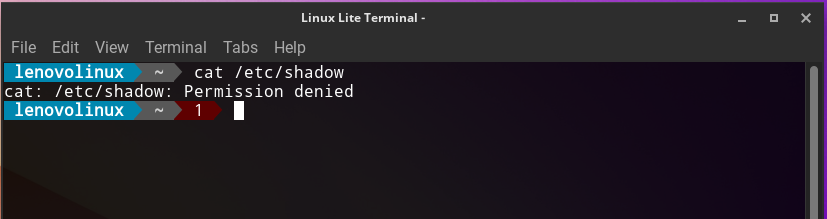
(It will say "Permission denied." This proves the security model works.)
Finding 2: The "Where is the Internet" Story (DNS & Networking)
1. The Discovery (What I Found)
I wanted to understand how my laptop actually finds websites when I type google.com. I knew it had something to do with DNS (Domain Name System), but I didn’t know where that setting lived.
I looked at /etc/resolv.conf. I expected it to be a complex binary configuration, but it was just a simple text file containing one line: nameserver 127.0.0.53
I also looked at /etc/hosts, which is another plain text file. It contained a mapping: 127.0.0.1 localhost
2. What This File Does (The Function)
/etc/resolv.conf: This file tells your computer which DNS server to ask when it needs to translate a domain name (likementorclap.com) into an IP address (like192.0.2.1)./etc/hosts: This is a local "override" list. Before your computer asks the Internet for a domain name, it checks this file first. If the name is here, it uses the IP listed here and ignores the internet.
3. Why It Exists (The Problem It Solves)
Computers don’t understand names like "Google"; they only understand numbers (IP addresses). We need a system to translate names to numbers.
resolv.confexists so you can change your DNS provider easily. For example, if you want to use Cloudflare’s faster DNS, you just change the IP in this file.hostsexists for local development and testing. It allows developers to trick their computer into thinking a website lives on their own machine.
4. The Insight (Why It Matters to a Developer)
This was a major "Aha!" moment for me. As a developer, I often run into issues where my local React app can’t connect to my local Django backend.
Local Development: I now understand that I can edit
/etc/hoststo map a fake domain likeapi.localto127.0.0.1. This makes my local setup mimic a real production environment more closely.Debugging Connectivity: If my server can’t reach an external API, I now know to check
/etc/resolv.conffirst. If the nameserver IP is wrong or unreachable, no amount of Python code will fix the connection. The problem isn’t in my code; it’s in this single text file.Security: I realized that if a hacker gains access to my server, they could modify
/etc/hoststo redirect my traffic to a malicious site. Knowing this file exists helps me monitor it for unauthorized changes.
Finding 3: The "Live Brain" Story (The /proc Filesystem)
1. The Discovery (What I Found)
I wanted to see what my computer was doing right now. I knew I could use commands like top or ps, but I wanted to see where that data actually comes from.
I navigated to a directory called /proc. Unlike other folders, this one doesn’t exist on my hard drive. It’s a "virtual" filesystem created by the kernel in memory.
Inside, I saw folders named with numbers (like 1, 452, 1024). I realized these were Process IDs (PIDs). I picked the folder for my current terminal session and looked inside:
/proc/[pid]/exe: A link to the program running./proc/[pid]/fd: A list of every file that program has open./proc/cpuinfo: A file detailing my CPU specs.
2. What This File Does (The Function)
The /proc filesystem is a window into the kernel. It doesn’t store data permanently; it generates it instantly when you ask for it.
/proc/[pid]/: Each number represents a running process. Inside, you can see exactly what that process is doing, what files it’s using, and how much memory it’s eating./proc/cpuinfo&/proc/meminfo: These files provide real-time hardware statistics. When you run a system monitor tool, it’s just reading these text files.
3. Why It Exists (The Problem It Solves)
In older operating systems, getting information about running processes required complex, specialized APIs. Linux simplified this by saying: "If you want to know about a process, just read its file."
This allows any programming language (Python, Bash, C) to inspect the system without needing special permissions or libraries. It makes automation and monitoring incredibly easy.
4. The Insight (Why It Matters to a Developer)
This changed how I think about debugging.
Debugging "Too Many Open Files": Sometimes, my Django app crashes with an error saying it has too many open files. Before, I was guessing which files were open. Now, I know I can go to
/proc/[django-pid]/fdand see every single file descriptor. I can count them and identify leaks.Performance Monitoring: I don’t need to install heavy monitoring software to check my server’s health. I can just
cat /proc/loadavgto see if the CPU is overloaded.Security Forensics: If I suspect a malicious script is running, I can look at
/proc/[suspicious-pid]/exeto see exactly what binary is executing. It’s like an X-ray for my running software.
Finding 4: The "Black Box" Story (System Logs)
1. The Discovery (What I Found)
I wanted to know what my computer had been doing while I wasn’t looking. I navigated to /var/log, a directory filled with text files that record system events.
I looked at two specific files:
/var/log/syslog: A massive file containing general system activity./var/log/auth.log: A file that specifically records security events, like logins and password attempts.
When I opened auth.log, I saw entries like: Apr 21 10:15:01 mylaptop CRON[1234]: pam_unix(cron:session): session opened for user root
2. What This File Does (The Function)
/var/log/syslog: This is the "catch-all" diary of the operating system. It records everything from hardware errors to service startups./var/log/auth.log: This is the security guard’s notebook. It tracks every time someone tries to log in, whether they succeed or fail, and when they usesudoto get admin privileges.
3. Why It Exists (The Problem It Solves)
Computers are complex. When something goes wrong—like a WiFi drop or a failed update—you need a record of what happened before the crash. Without logs, debugging would be impossible because you’d have no history.
These files exist to provide an audit trail. They allow administrators to look back in time to understand the sequence of events that led to a problem.
4. The Insight (Why It Matters to a Developer)
As a developer, I often think of "logs" as the output from my Python print() statements. But system logs are different—they are the logs of the environment my code lives in.
Debugging Deployment Issues: If my Django app fails to start on a server, the error might not be in my code—it might be that the database service didn’t start. Checking
/var/log/sysloghelps me see if the database crashed before my app even tried to connect.Security Awareness: I was shocked to see how many "Failed password" attempts were in my
auth.log. This taught me the importance of using strong passwords and disabling root login.Log Rotation: I noticed these files don’t grow forever. I learned about
logrotate, a tool that automatically archives and deletes old logs. This is a critical concept for managing disk space on production servers.
Finding 5: The "Hardware Store" Story (The /dev Directory)
1. The Discovery (What I Found)
I wanted to see how Linux talks to my physical hardware—my hard drive, my mouse, and even the random number generator. I looked inside the /dev directory.
Instead of complex driver software, I found simple files:
/dev/sda: My main hard drive./dev/null: A special "black hole" file./dev/urandom: A file that generates infinite random numbers.
I tested /dev/null by running echo "Hello" > /dev/null. The text vanished instantly. It didn’t save to disk; it just disappeared.
2. What This File Does (The Function)
The /dev directory contains device files. These are special interfaces that allow programs to communicate with hardware using standard read/write operations.
Block Devices (like
/dev/sda): Represent storage devices. You can read and write data to them in blocks.Character Devices (like
/dev/urandom): Represent devices that handle data as a stream of characters or bytes, like keyboards or random number generators./dev/null: A unique device that discards anything written to it. It’s used to silence output in scripts.
3. Why It Exists (The Problem It Solves)
In many operating systems, talking to hardware requires specific, proprietary APIs. If you want to read from a hard drive, you use one tool; if you want to read from a USB stick, you use another.
Linux simplifies this by making every device look like a file. This means a Python script can read from a sensor, a hard drive, or a network socket using the exact same open() and read() commands. It creates a universal language for hardware interaction.
4. The Insight (Why It Matters to a Developer)
This concept is crucial for building robust applications.
Secure Randomness: When I generate a
SECRET_KEYfor my Django app or a password reset token, I need it to be truly random. Python’ssecretsmodule uses/dev/urandomunder the hood. Knowing this file exists gives me confidence that my security tokens are cryptographically secure.Silencing Noise: In my deployment scripts, I often run commands that produce unnecessary output. Instead of letting that clutter my logs, I redirect it to
/dev/null(e.g.,command > /dev/null 2>&1). It’s a clean way to keep my terminal and logs tidy.Hardware Abstraction: If I ever build an IoT project with a Raspberry Pi, I know I can interact with sensors by simply reading files in
/dev. I don’t need to learn a new hardware-specific language; I just need to know how to read a file.
Conclusion: The Power of Transparency
Before this exploration, Linux felt like a black box to me. I knew how to use it, but I didn’t understand how it worked. By treating everything as a file, Linux removes that mystery.
I learned that:
Identity is managed in simple text files (
/etc/passwd).Networking is configured in plain text (
/etc/resolv.conf).Processes are exposed as live directories (
/proc).History is recorded in readable logs (
/var/log).Hardware is accessed through standard file interfaces (
/dev).
For a developer, this transparency is invaluable. It means I don’t have to guess why my server is slow or why my connection failed. I can look at the files, read the truth, and fix the problem. Linux doesn’t hide its complexity; it organizes it into files, waiting for anyone curious enough to read them.