Git for Beginners: Basics and Essential Commands
I am a developer from India.
When we talk about programming, we usually hear of Git. But what is it, and why do people use it?
What is Git?
Git is a version control system. That means it saves different versions of work so that you can
Go back to an older version if something breaks
See what changed and who changed it
Work on new features without messing with the project
Why is Git used?
Let’s take a real-life example -
By mistake, you delete a file → Git can bring it back.
Your code stops working after a change → Using git you can change what change you made in the latest commit
You and a friend are building a website together → Git helps you combine your work without overwriting each other code.
You can create a separate branch for a new feature so that if that feature you were trying to build does not work, your last code is safe.
So, basically, Git helps you code safely and in oragnaized manner.
Git basics and core terminologies
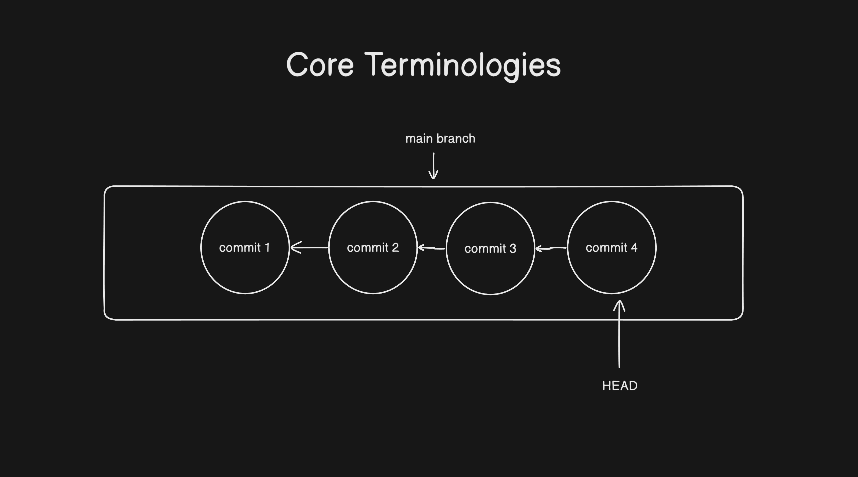
Few terminologies you will use mostly while using Git.
Repository ( or ‘repo‘ )
This is just a folder/directory which Git is watching for changes. Once you turn a folder into a Git repo, Git starts tracking and saving its history.
Commit
A commit is a saved snapshot of your files at a certain time. Think of it like a checkpoint. You can always go back to it using each commit hash. So, each commit has a unique ID, a message, and the name and email of the person who did the commit.
Branch
A branch is a separate line of work. The main branch is usually called main or msater. We can create multiple branches for multiple features so that our main branch is safe until the feature is fully working.
HEAD
This is just a pointer or reference to where you currently are - usually the latest commit on your current branch.
Git works in three simple areas
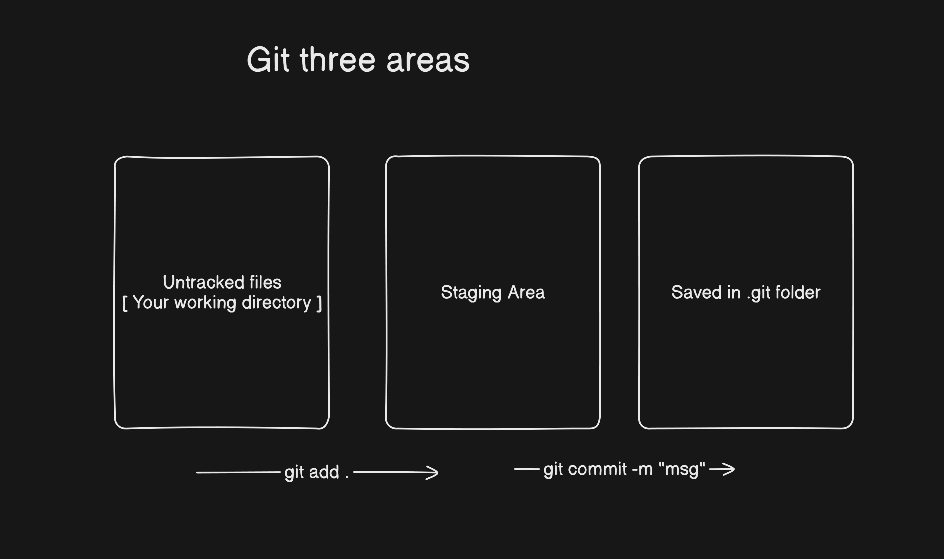
GIt uses three main areas to manage your files
Working directory/folder - Your normal folder with files you edit.
Staging area - Imagine it as a simple lobby area or a waiting room where you choose which changes to save next.
Repository - The .git folder that stores all your saved commits.
Common Git commands
Let’s learn about common git commands using an example.
Suppose there is a folder my-notes, and in that folder, whatever I do, it will not be tracked until I initialized git in it.
git init
When you run this command in the my-notes folder. You will see the below message.
Initialized existing Git repository in C:/Users/kravi.000/Documents/code/learn/my-notes/.git/
This turns my my-notes folder into a Git repository. Git creates a hidden .git folder to store everything.
For other commands, I have created a file cohort.txt file.
git status
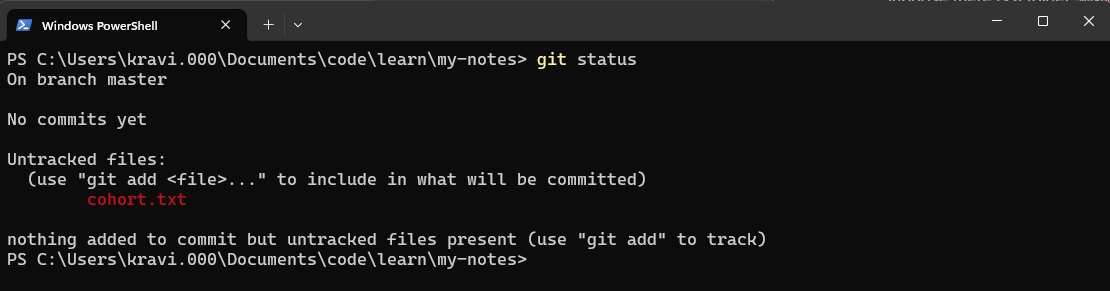
This tells you -
Which files are new or changed
Note - New file cohort.txt is untracked, and changed files will be shown as modified, but there is no file in the folder as modified for now.
Which files are staged (ready to be saved)
Which branch are you on
git add <filename>
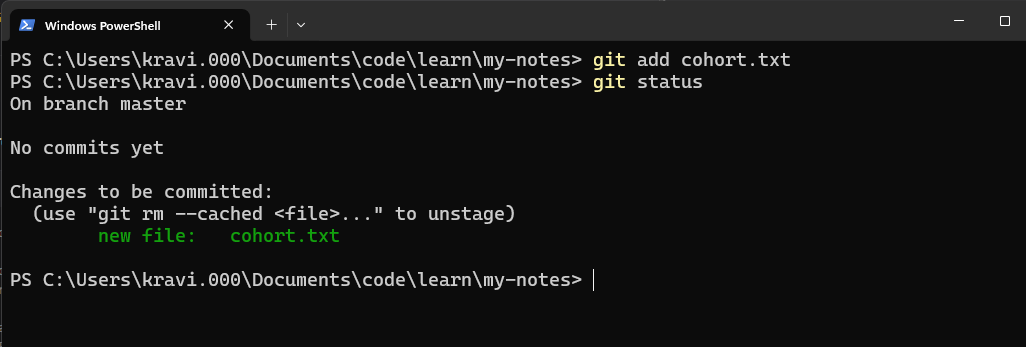
This command is used to add a file to the staging area. Like I did with cohort.txt
So at the place <filename>, you can put your file name and run this command.
I have added “First class completed” text in the file and added the file in the staging area using the above command.

There is no output for this command it just add the cohort.txt file in staging area. To check you can run the git status command again. Below is the ss.
git add .
You can use this command to add all files to the staging area. This simply means add all the files in the staging area.
In my case, there is only one file in the folder, so I added another file notes.txt and added “Note one“ text and ran the above command.

Again, there is no output, but it added all the files to the staging area.
You can anytime cross-check the things using git status command.
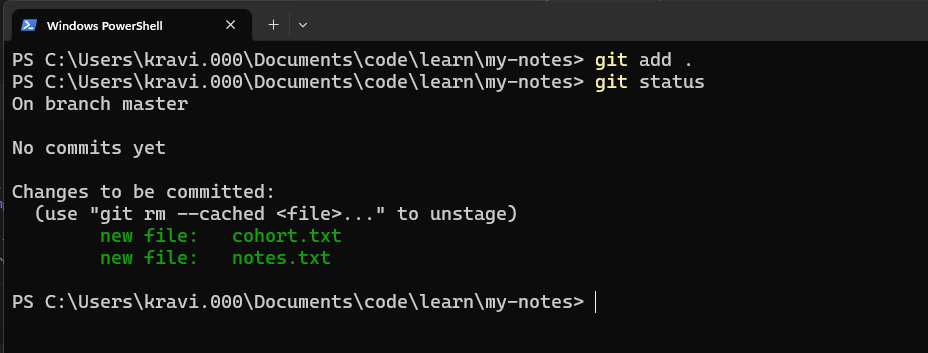
Here, in the above ss you can see there are two files to be committed. So let’s learn how to commit, which means save the file.
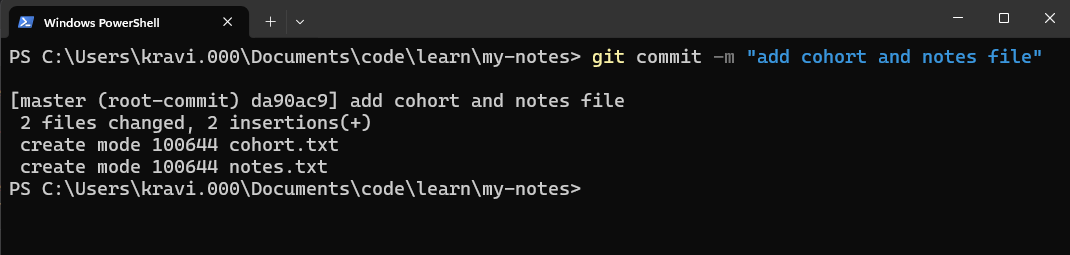
git commit -m “your message”
Now, using this command, Git saves a snapshot of everything in the staging area. The -m lets you add a short message. So, you should add a good message about what you have done.
git log
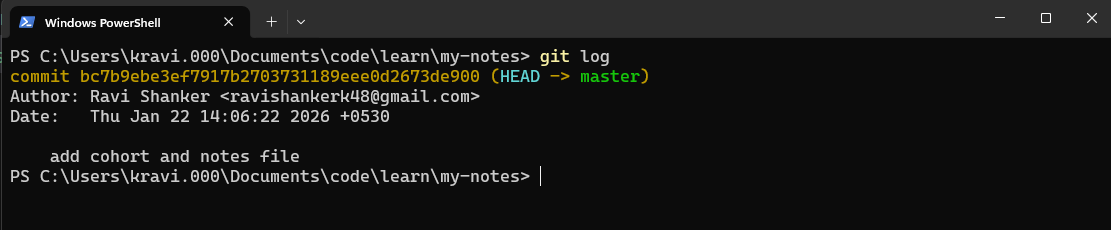
This command shows a list of your commits. You’ll see the commit ID, Author, Date, and Message. You can use q to exit from there.
git diff <commit_hash> <second_commit_hash>
It shows you the difference between those two commits.
So in place of commit_hash and second_commit_hash you can put your two commit hashes which you want to compare or check the difference.
To show you an example. Let’s add “Second class completed” text in cohort.txt and then commit it so that we can compare those two commits.
To get the hashes you can use git log command.
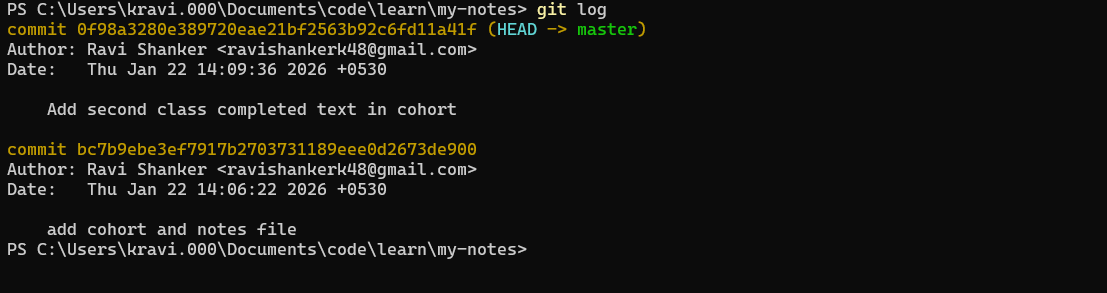
Now let’s compare both commits, so you can only take the first 12-15 chars of the hash to compare. You don’t need to take the whole hash ID.
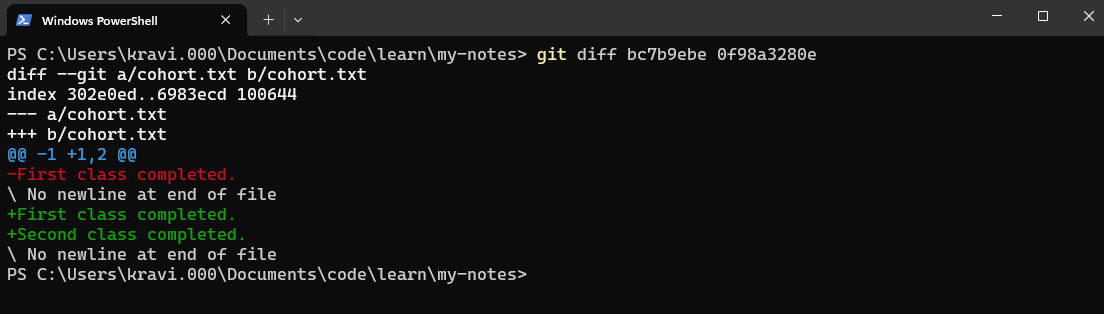
Here, you can clearly see what was added in the commit and what the difference.
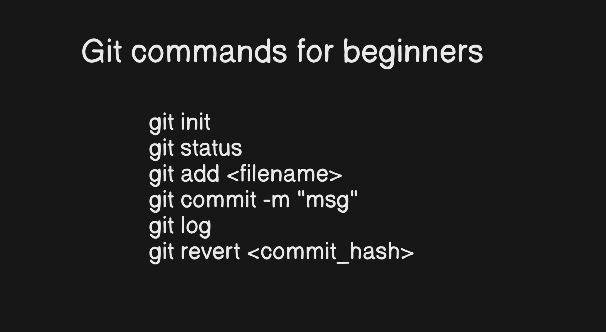
These are the commands you will be using 90% of the time while coding.
But there is another command to learn.
git revert <commit_hash>
It adds a new commit that negates the changes of the provided commit hash.
Let’s try this. In the second commit, I have added “second class completed” text in the cohort.txt. Now, I want to remove that, so what I can do is just take the hash of that commit and run the above command.
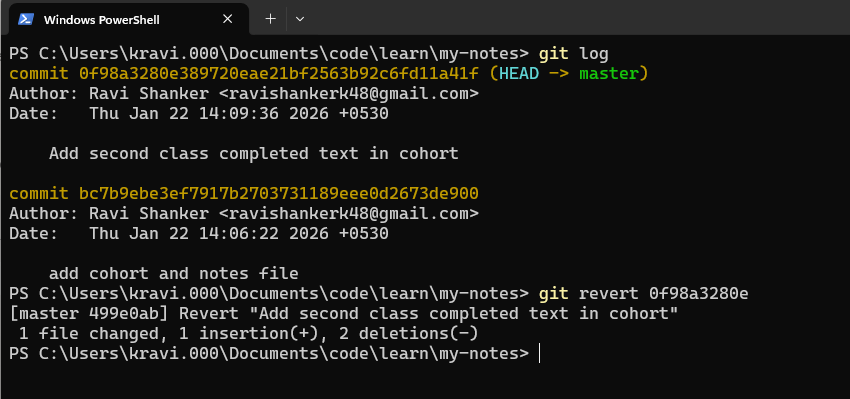
When you run the command, it will open an editor in the terminal and ask you to add a message. You can directly press : and q So it will close that editor.
Now let’s check using git log command. What happened?
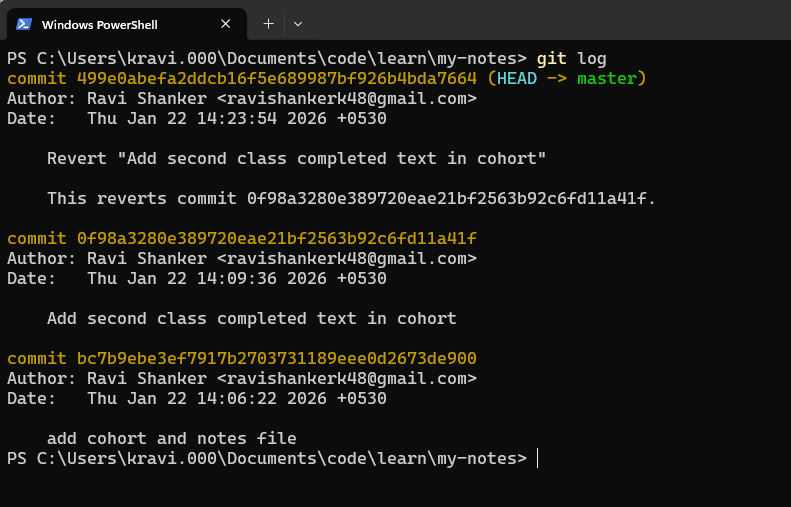
It added a new commit Revert “Add second class completed text in cohort"
That is how it works.
Most of the time, you will be using these commands.